
You may create as many Digital Pass Configurations as needed to fulfill your membership specifications. You define which membership levels are tied to the configuration.
Configuration settings include:
- Pass download limits
- Pass auto send (for standard joins and gifts)
- Install email templates (for standard joins and gifts)
To create a new configuration, navigate to Digital Passes > Configurations and click New Configuration. To edit your configuration, click the edit icon.
Configuration Settings
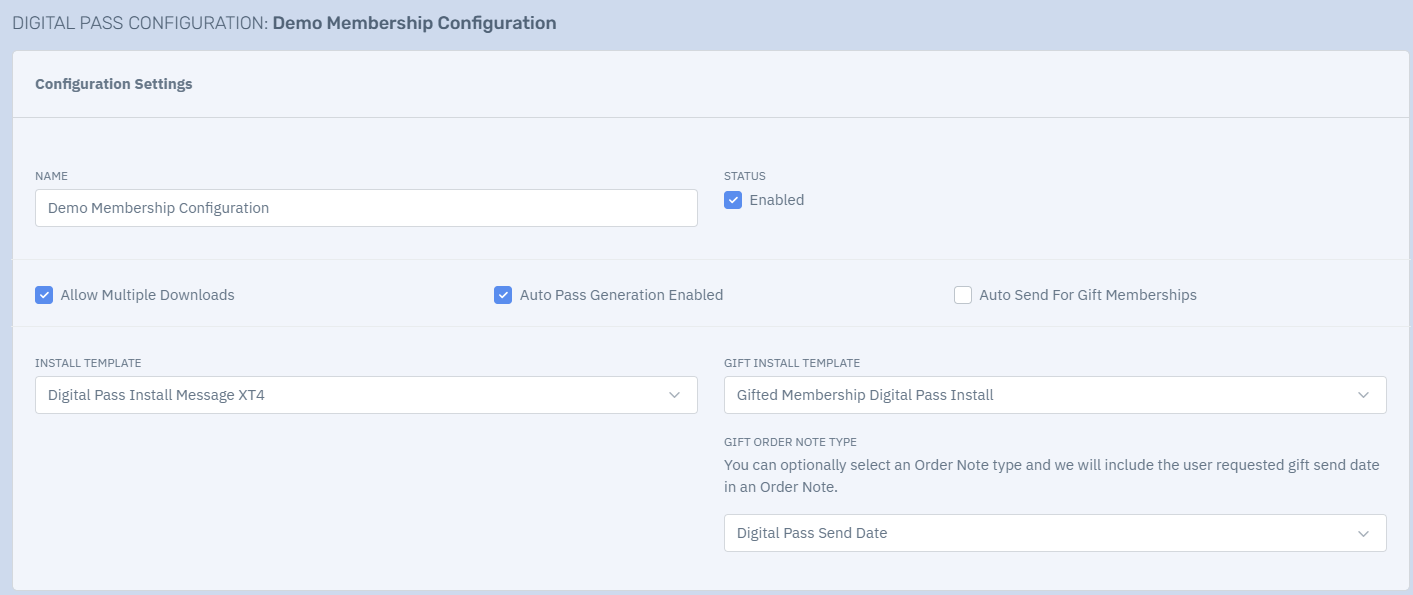
On the Settings tab, you will see various selections to choose from:
- Status: Defines whether the Configuration is in-use or not. If status is not enabled, no passes will be generated.
- Allow Multiple Downloads: Check this box if you would like members to be able to download their pass more than once. If left unchecked, members will be limited to a single download per pass.
- Auto Pass Generation Enabled: This should be your last step! Check the box to enable only once you have completely finished configuration. Check this box if you would like our system to automatically send install emails when new membership transactions occur. This setting automatically detects any new memberships added to the system (Altru or XTruLink) for which no Install Email Message has yet been sent. This automation runs every 10 minutes and will create the pass if needed and send an email to the primary member with a link to install.
- Auto Send for Gift Memberships: This should be your last step! Check the box to enable only once you have completely finished configuration. Please see this article for more information on this setting.
- Install Template: this is the email that will be sent for standard joins.
- Gift Install Template: this is the email that will be sent for gift memberships.
- Gift Order Note Type: Please see this article for more information on this setting.
Template Memberships
On this tab, set the membership level(s) associated with your configuration and the pass template pairings. To add a membership level to the configuration, click Add Program. Select the Program, Level, and Template, then Save. You may add as many level/template pairings as desired.