
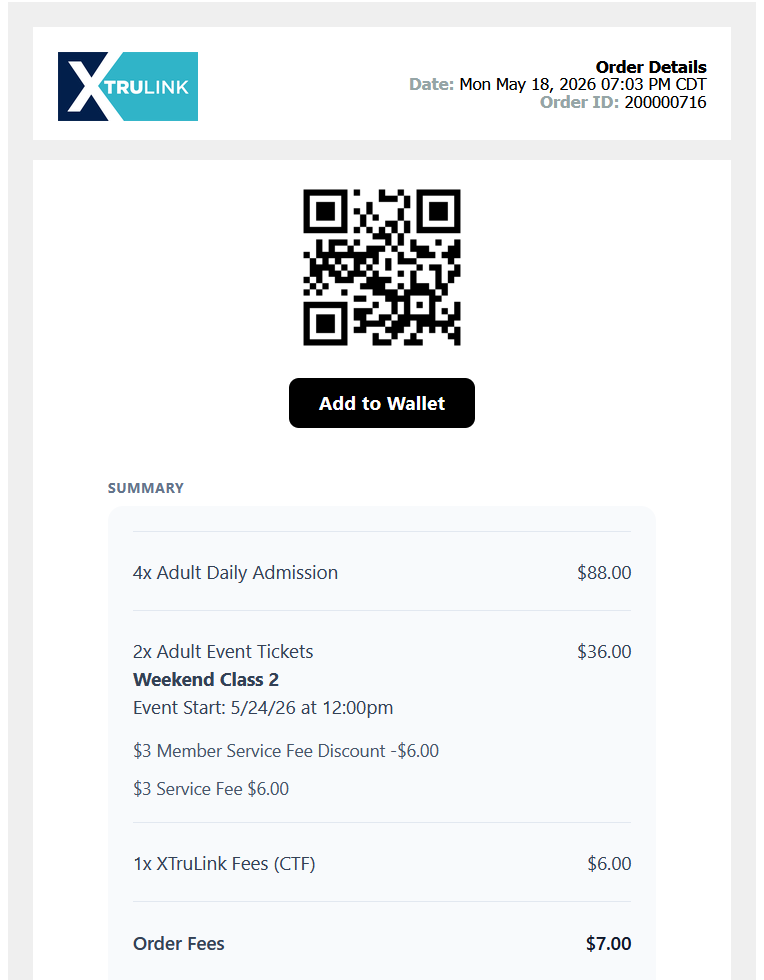
If enabled, patrons may download their tickets to Google or Apple Wallet. All tickets purchased on the order will be bundled within a single wallet ticket with a single QR code. This is the same QR code patrons find on their receipt. As on the receipt, the QR code may be scanned repeatedly until all tickets have been redeemed.
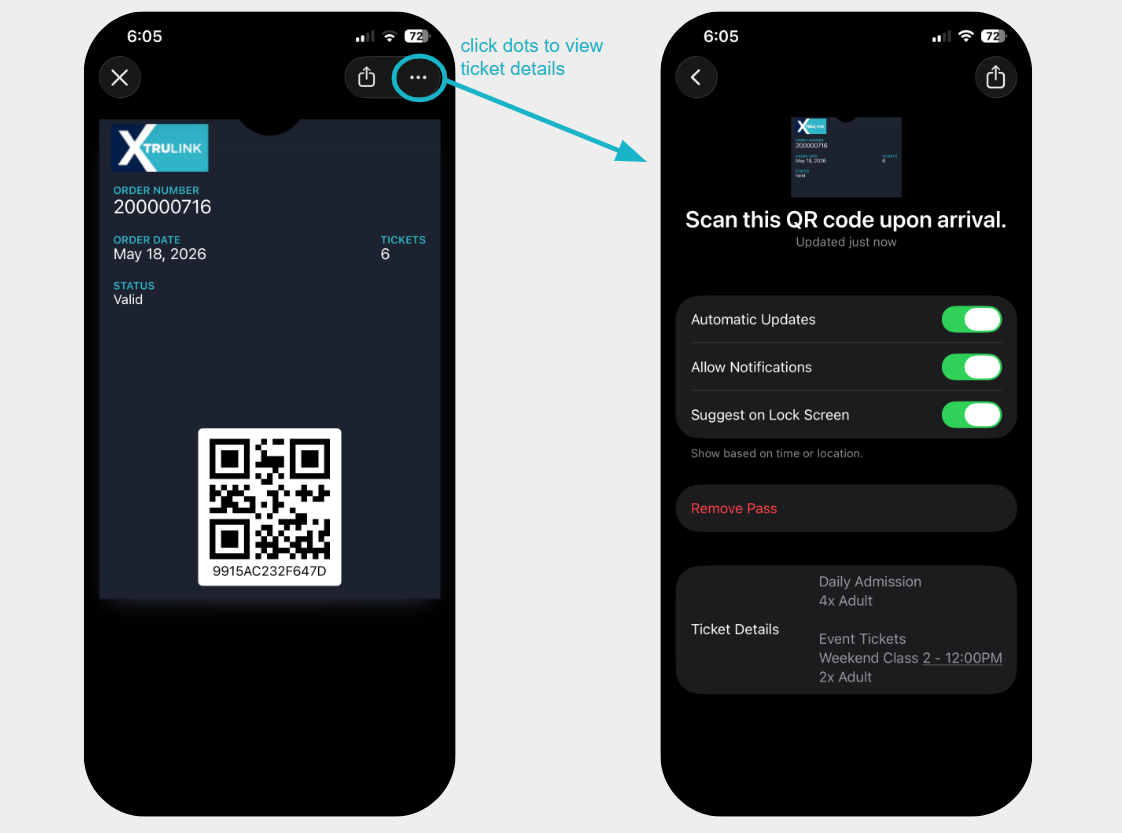
Here is a sample wallet ticket on iOS:
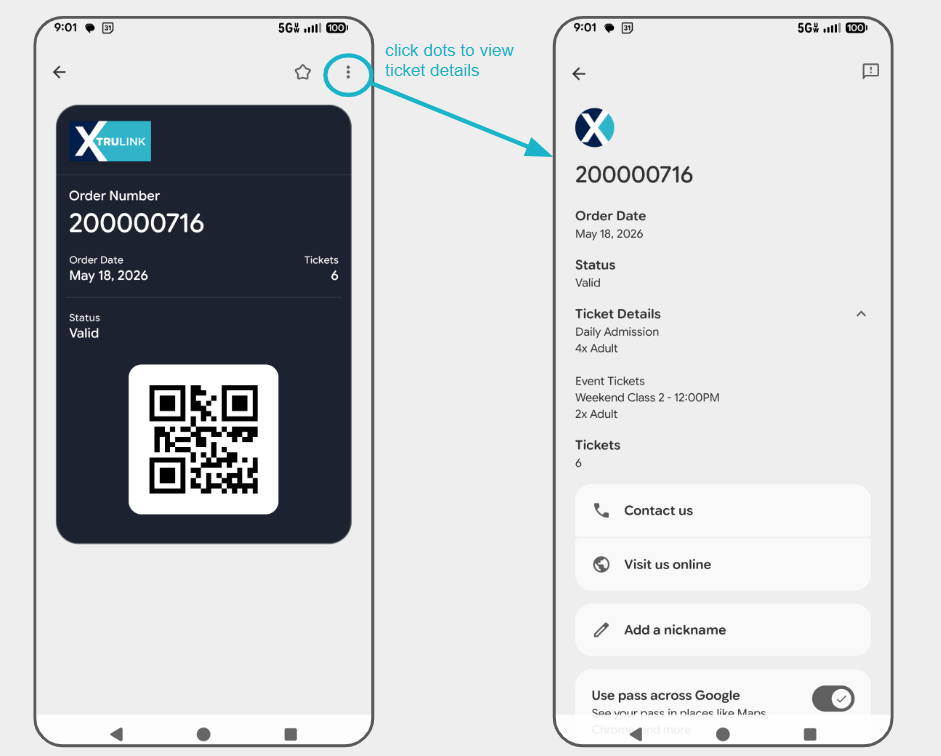
Here is a sample wallet ticket in Google Wallet:
The download to wallet option will show immediately below the master ticket barcode (QR code) on receipt:
Enable Digital Wallet Tickets
To set up digital wallet tickets for your receipts, navigate to Digital Passes > Templates. Under the Ticket Templates area, click Create Template.
NOTE: Only one ticket template may be used at once. Custom templates are not available for different programs and events.
Once your template is initialized, click Edit to adjust the appearance. You may adjust the following:
- Overview: Description (shows on the back of pass for iOS) and Logo Text (optional, appears next to logo image)
- Appearance: Logo and other optional images. There are 2 spaces for secondary images--one for Apple and one for Google.
- Pass Front: Fields to display on front of pass. Select the Dynamic checkbox to pull in order data. Recommended: Order Number, Ticket Count, Scan Summary
- Pass Back: Fields to display on back of pass. Select the Dynamic checkbox to pull in order data. Recommended: Ticket Summary
- Relevance: Add your location's coordinates to allow pass to appear as notification on user's device when they are close to your facility.