
In this article:
Selling and redeeming gift cards across platforms
Checking gift card balances in the User Portal
Accessing gift card activity and balance reports
Looking up gift cards in the XTru back office
Voiding or suspending a purchased gift card
Processing gift card refunds
Need a deeper dive into managing gift cards?
If you're looking for detailed instructions on setting up or configuring your gift card settings from scratch, check out our full Gift Card Setup Knowledge Base Article
Use the quick reference below to address common gift card questions and workflows.
1. Can gift cards be sold and redeemed across XTru selling platforms?
Gift cards can be purchased online through your XTru Web Portal, or through Advance Sales or POS, and redeemed through supported XTru selling platforms, including XTru Web, Kiosk, MPOS, Advance Sales, and POS.
(Note: Gift cards cannot be redeemed directly within Altru. However, any order completed using a gift card redemption in XTru will automatically sync and appear in Altru.)
2. Can patrons check their gift card balance through the User Portal?
Patrons can access their digital gift card information through your website. Once on your webpage, the patron can select the My Account drop-down menu and choose Gift Card Balance.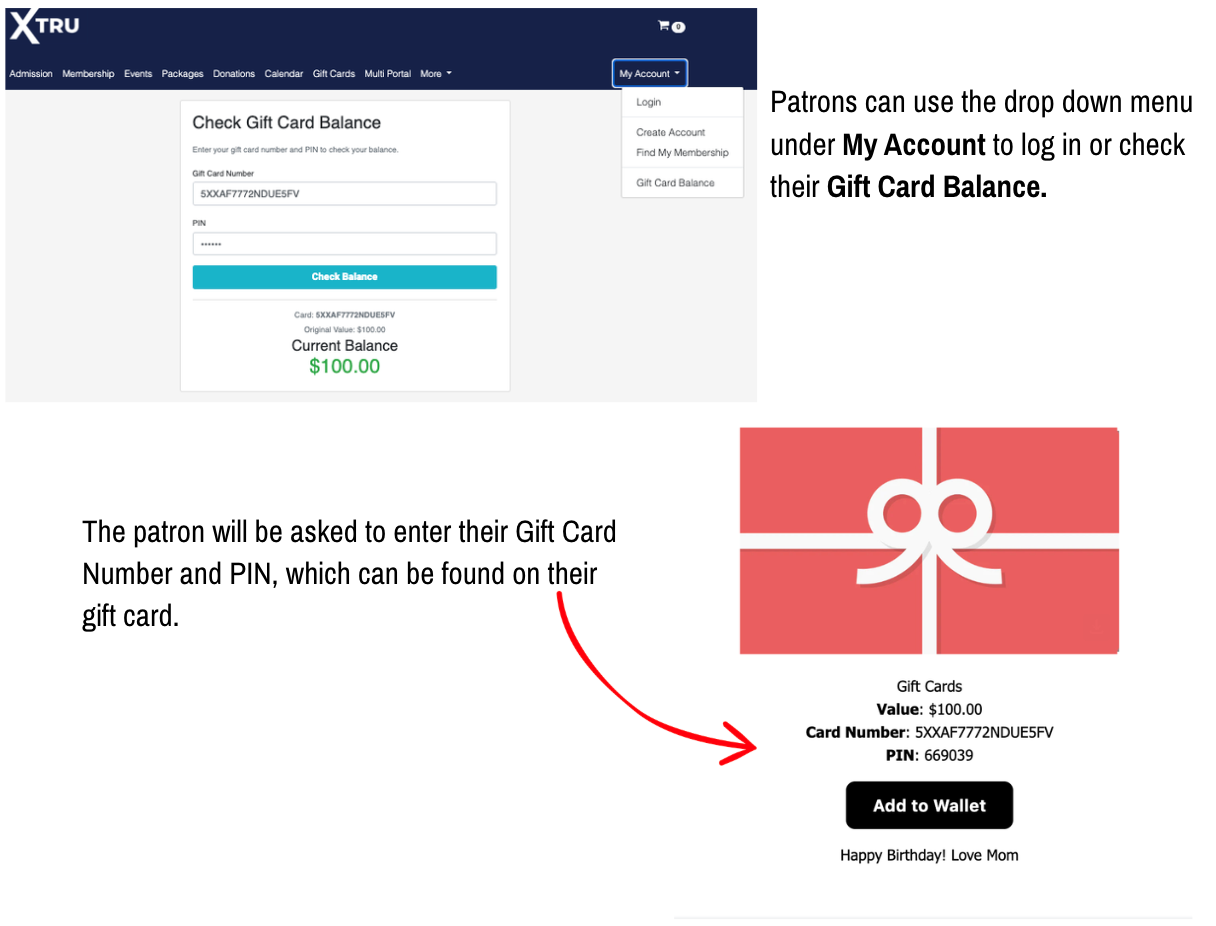
3. Are reports available to track gift card usage, balances, and aging?
The XTru Reports module is the place to look for gift card reporting. You can use reporting tools under the Gift Cards header to review gift card activity, outstanding balances, and aging information.
4. How can I look up a gift card in the XTru back office?
Use the XTru back office to locate gift card information. To look up an individual gift card, navigate to Orders > Gift Cards. You can view your current gift cards in list form or use the Search Gift Cards button in the upper right.
If viewing in list form, click the eyeball icon on the right to view additional gift card information, including transaction history and current balance.
If using the search function in the upper right, you can search using any of the following criteria: card number, status, gifter’s name, gifter’s email, recipient name, or recipient email. Once you have located the gift card, click the eyeball icon on the right to view more details.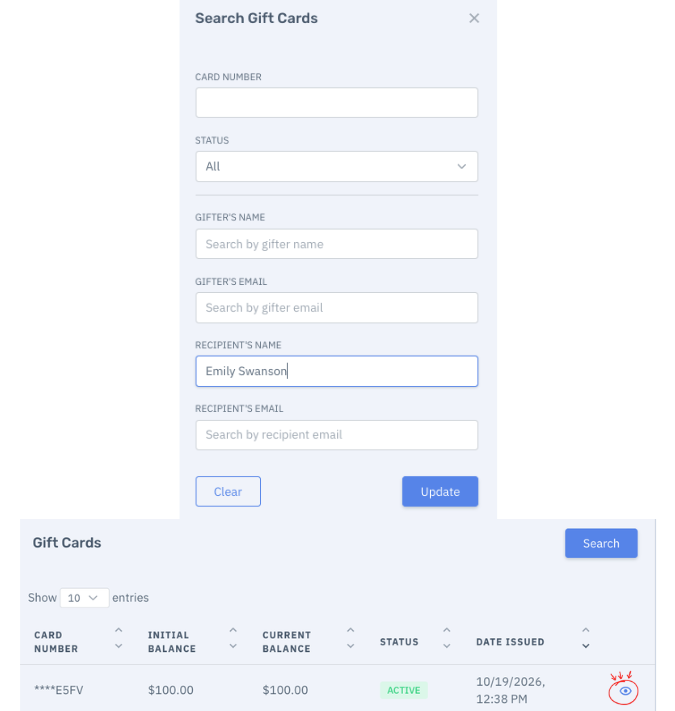
5. Can my organization void or suspend a purchased gift card?
Yes. To void or suspend a gift card, first locate the card in the XTru back office by navigating to Orders > Gift Cards. Locate the card using either the list view or the Search Gift Cards button in the upper right, then click the eyeball icon on the right to open the card details.
Once you are on the gift card details page, click the Gift Card Tasks button in the upper right. Use the drop-down menu to select either Suspend Card or Void Card.
(Note: The Gift Card Tasks menu also allows you to update the recipient’s email, resend the delivery email, or view the original order.)
6. Our patron purchased a gift card, but wants a refund. How do I process that?
Use the XTru back office to locate the order. The most direct route to process a refund is to go to Orders > Orders. Click the Search button in the upper right and use any of the available fields to find the order.
Once you have located the order, click the pencil icon on the right side of the screen to open the order page. Next, click Order Tasks in the upper right corner and select Process Refund from the drop-down menu.
(Note: The Order Tasks menu also allows you to view receipts, resend receipts, change the assigned patron, edit delivery information, or look up the order in Altru.)