
XTruLink payments by default will not be connected to a cash drawer in Altru and will not appear in any closed drawer reports. They will still be included in your deposit process and deposit reports.
You may choose to create a cash drawer for XTruLink payments based on payment processor. This setting can be found under System > Payment Setup > Payment Methods.
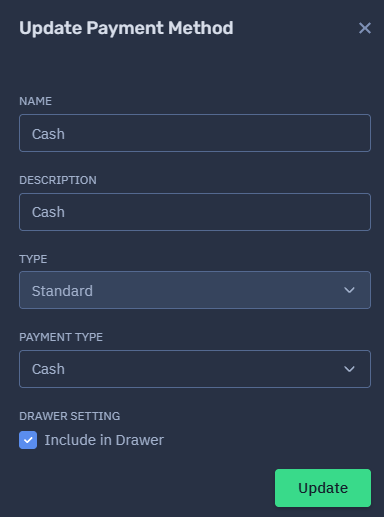
To enable a cash drawer for any payment method:
- Select the edit icon to the right of the payment method on your Payment Methods list.
- Check the box to Include in Drawer.
- Click Update.
Please note:
- Any cash drawers created for XTruLink transactions must be manually closed by one of your staff members. These drawers will not automatically close.
- If you have retained the default setting (no cash drawer created), you might still see a drawer connected to the XTruLink Sync user open from time to time. This is because a drawer will always open for refunds. You can just close this out.
- If you have cash payments enabled for MPOS devices, we recommend selecting the option to create a drawer for your Cash Payment processor to facilitate end-of-day cash reconciliation.