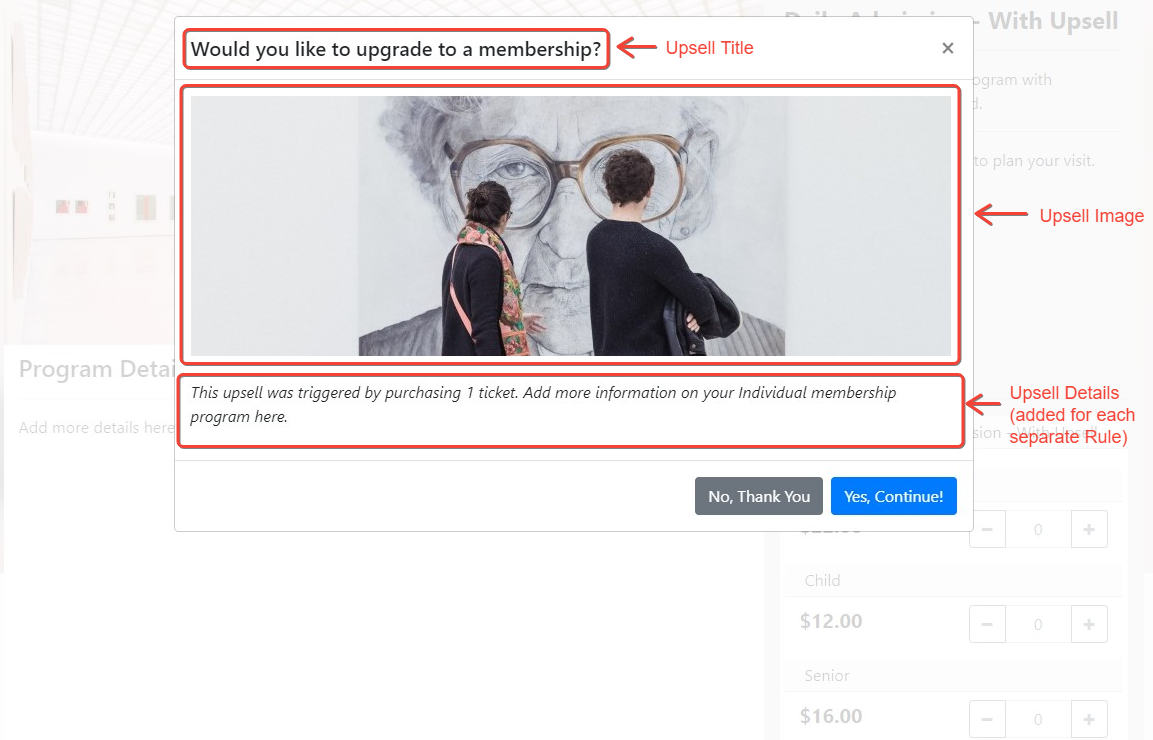
You can configure an Upsell pop-up on a program or combo page. Upsells are not available on donation, membership, and custom pages. An upsell is a suggestion for the customer to purchase another item instead of the items they selected on the current page. The pop-up will appear after the item has been selected, when the "Add to Cart" button is clicked. The customer can then select "Yes, Continue!" to accept the upsell option, or they can select "No, Thank You" to continue with their original selection.
How to add an upsell to a web portal page:
- From the Main Menu, navigate to Online Sales > Portals > Edit Portal > Menu.
- Select Pages for a menu item, then click Edit for the page you'd like to edit.
- On the page taskbar above the display image, click Upsell.
- Click Add Upsell
- Add an Upsell Title. See image below for front-end placement.
- Add an Upsell source (typically this is just the page you are on).
- Click Save Upsell. Then click Edit next to the Upsell you added.
- Add an Upsell Display Image.
- Click the Add Target button.
- Indicate the # of tickets that will trigger the upsell.
- For Target Type, select an option.
- For Target, select the item you'd like to suggest.
- Add Upsell Details.
- Add additional targets as needed.
- Be sure to Save and Sync Changes.