Sales Order Note Fields may be used to ask for additional information based on price type or donation level. These are configured at the page-level of the online web portal. These might be used for:
- Tribute Donations ("In Honor of" or "In Memory of" gifts)
- Additional information needed for programs that are not pre-registered
NOTE: Sales Order Note Fields are only available for Scheduled Programs, Daily Admission Programs, and Designations. They are NOT available for Memberships. Pre-registered Programs, or Combos.
Configure Note Fields
Before configuring Note Fields on the XTruLink web portal, be sure you have Note Types configured in your Altru database. Note types can be added in from Altru > Administration > Data > Code Tables > Category: Ticketing > Code table name: Sales Order Note Type.
Add a Note Field to a Donation Level or Price Type
- From the specific web portal page settings, click on the Notes tab.
- Click the button to Add Note.
- Select an Order Note Type (this comes from Altru).
- Select the Sales Order Item you'd like to associate with the Note Field (i.e. price type or donation level).
- Add a Label that will appear above the field.
- Select Active to display the note on the web portal.
- Select the Required box, if desired.
- Add optional Instructions, if desired.
- Click Save Note.
NOTE: You may use Note Fields to enable tribute donations for each donation level on a donation page. Be sure to add a separate Note Field to each donation level if you'd like the tribute option to appear for each level.
Reporting on Note Fields
All data associated with Note Fields may be found directly on the Sales Order Page in Altru under the Documentation tab. You may also query this information in Altru:
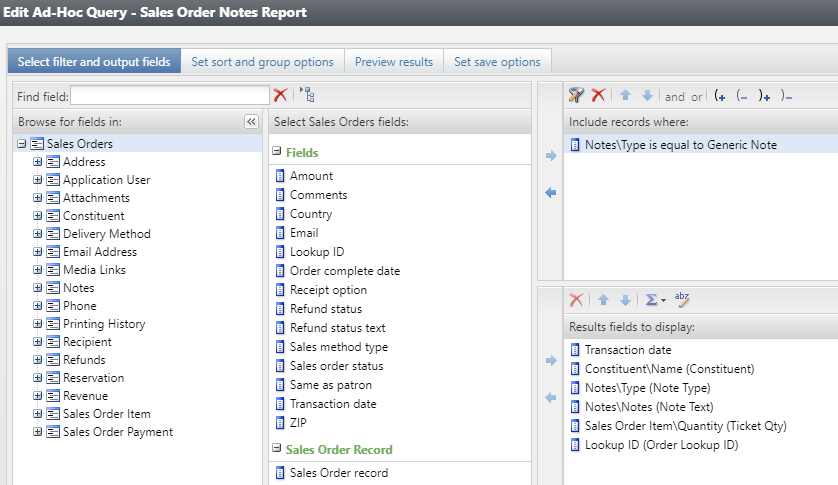
- Click Analysis > Information Library > Add an Ad-hoc Query.
- Select the Sales Order source view and click OK.
- Under the left column (Browse for fields in), click on Notes.
- Under the middle column, drag the 'Type' field to the Include records where section.
- Select the appropriate filter and click OK.
- Add additional filters as needed.
- Add fields to the Results fields to display section as needed. The field Notes\Notes will provide the text entered by the customer in the note field.
Here is an example of what your query might look like: